How to Add a Product with Variants
A variant product (or configurable product) is an optical item manufactured in multiple options—such as frame colorways (e.g. Green, White, Black, Red) and temple/eye sizes (e.g. 52-18-140 vs 54-18-140). Rather than cluttering your catalog with separate standalone listings, variants allow opticians and buyers to switch colors and select sizes directly from a single, seamless product page.
Step 1
Enter Basic Frame Information & Primary Representative Image
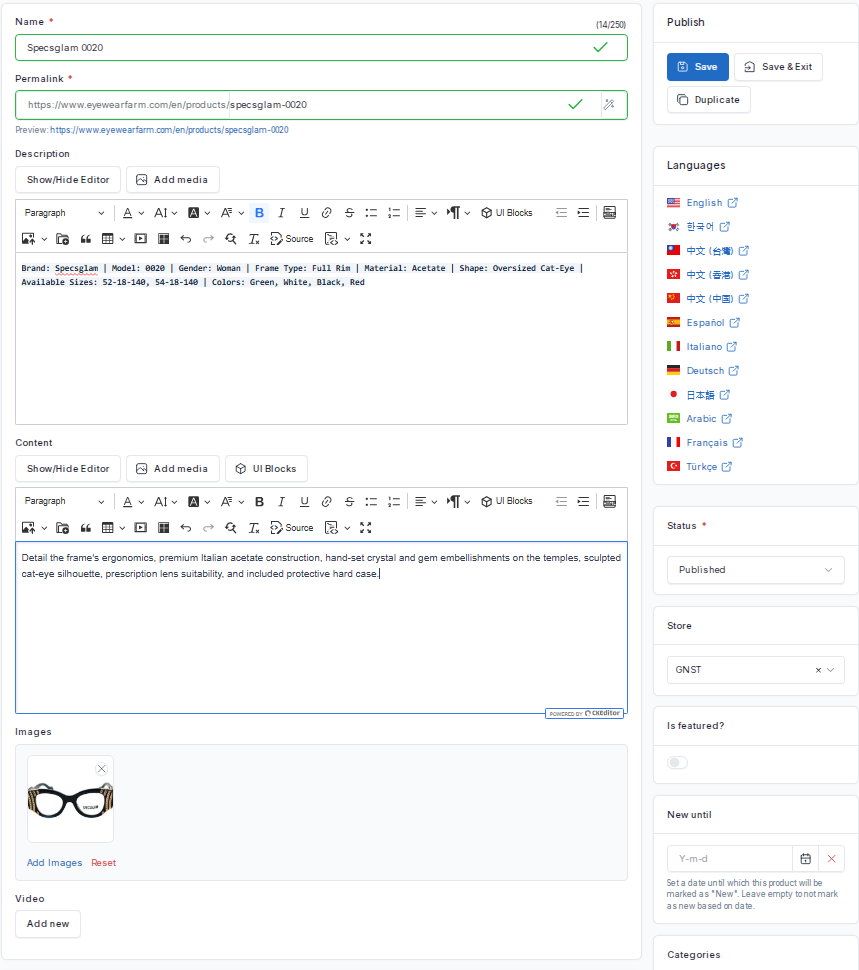
Navigate to Products → Create Product in your vendor dashboard. Enter the primary details for your optical listing:
- Name: Enter the official brand and model name without fixing a single color or size in the title (e.g., Specsglam 0020 ).
- Permalink: The system automatically creates a clean URL slug (e.g., https://eyewearfarm.com/en/products/specsglam-0020 ).
- Description: Provide a concise optical summary highlighting key attributes: Brand: Specsglam | Model: 0020 | Gender: Woman | Frame Type: Full Rim | Material: Acetate | Shape: Oversized Cat-Eye | Available Sizes: 52-18-140, 54-18-140 | Colors: Green, White, Black, Red .
- Content: Detail the frame's ergonomics, premium Italian acetate construction, hand-set crystal and gem embellishments on the temples, sculpted cat-eye silhouette, prescription lens suitability, and included protective hard case.
- Upload One Main Product Image: Under the Content editor in the Images card, click Add images and upload at least one primary representative frame photo (e.g. the black crystal frame). This primary image ensures your catalog card, search thumbnail, and default gallery display properly before individual variation photos are selected!
Step 2
Select Categories, Brand & Configure Taxes (VAT Rules)
Proper classification and tax rules ensure correct marketplace filtering and automated invoice compliance:
- Categories: In the right sidebar, check Optical Frames and sub-category Women Frames (or Designer Frames / All Optical Frames).
- Brand: Click the Brand dropdown and select Specsglam .
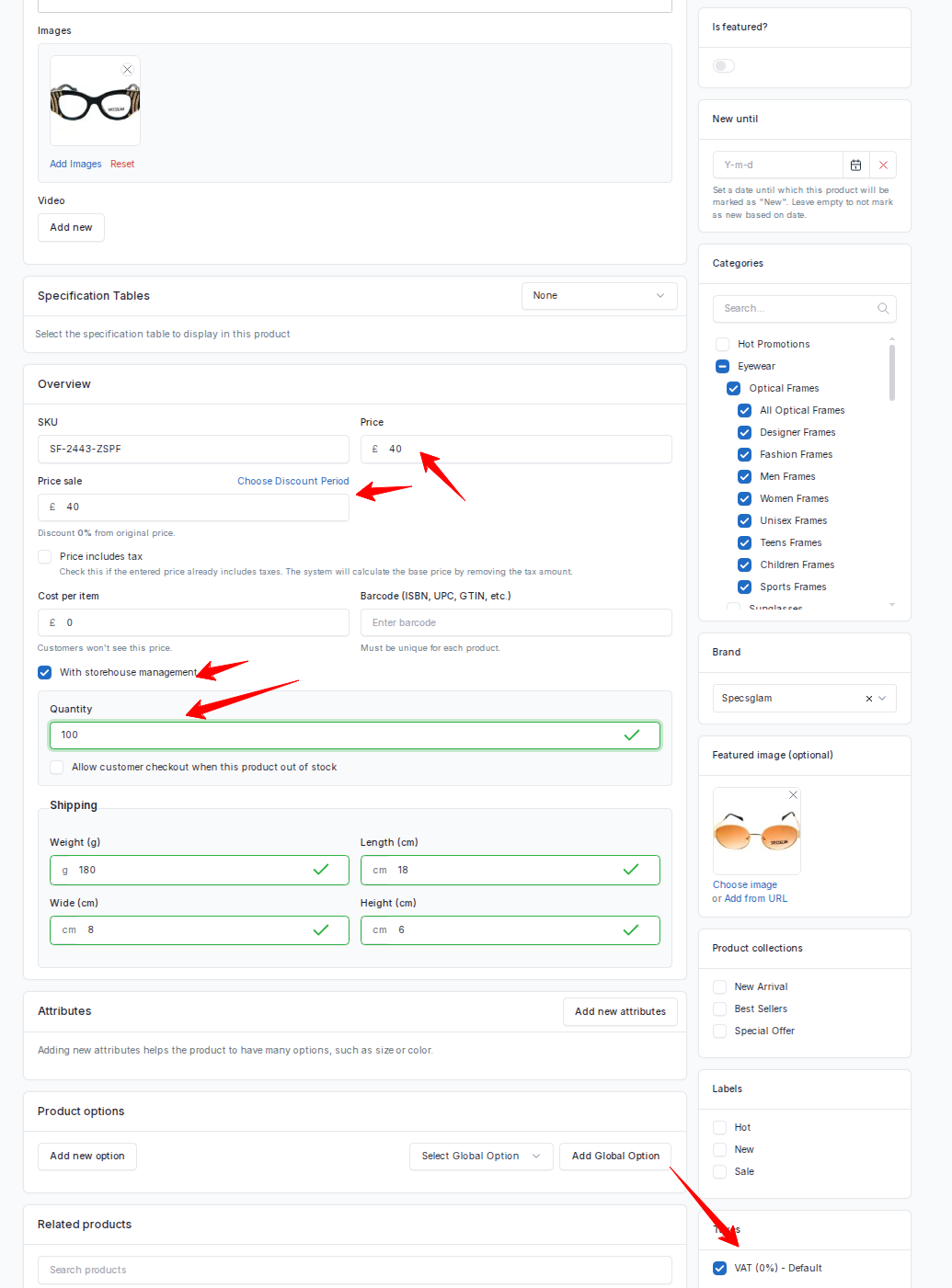
- Taxes (VAT) — Automated Global Rules: In the right sidebar under the Taxes card, select VAT (Default) . The platform's tax engine handles the logic automatically based on the buyer's shipping country:
- Domestic Sales (UK, France, China): If a customer buys from the UK (20%), France (20%), or China (15%), the system dynamically adds your local VAT onto the order total. If your entered product price is already gross (inclusive of VAT), make sure to check ✓ Price includes tax so the system properly itemizes the net base price and tax amount on the invoice.
- Zero-Rated Exports (0% VAT): If a customer buys from any other country (such as the USA or India), the system instantly recognizes the transaction as an international export and automatically applies 0% VAT , ensuring they buy completely tax-free under standard export exemption laws.
Step 3
Configure Product Attributes (Base Specs & Colorways)
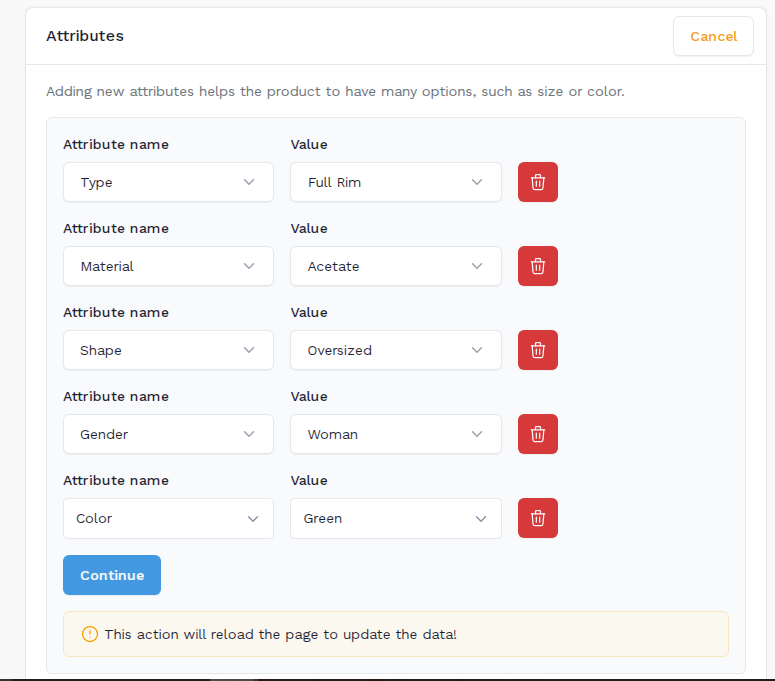
Scroll down to the Product Attributes panel to define the optical specifications and color variants:
- Add Color Attribute: Select Color from the dropdown menu and add the 4 manufactured frame finishes:
- Green
- White
- Black
- Red
- Add Base Specifications:
- Type: Select Full Rim .
- Material: Select Acetate .
- Shape: Select Oversized .
- Gender: Select Woman .
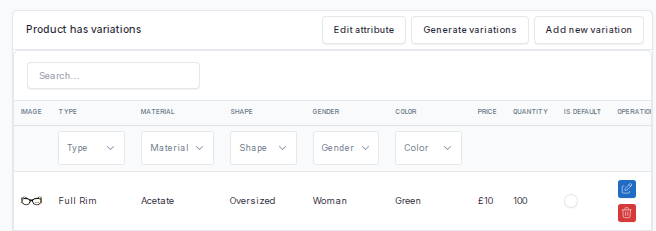
- Save Attributes: Click the Save Attributes button (or Continue). The page reloads and generates your Product has variations table with 4 colorway records.
Step 4
Edit Variations Table & Attach Color Pictures
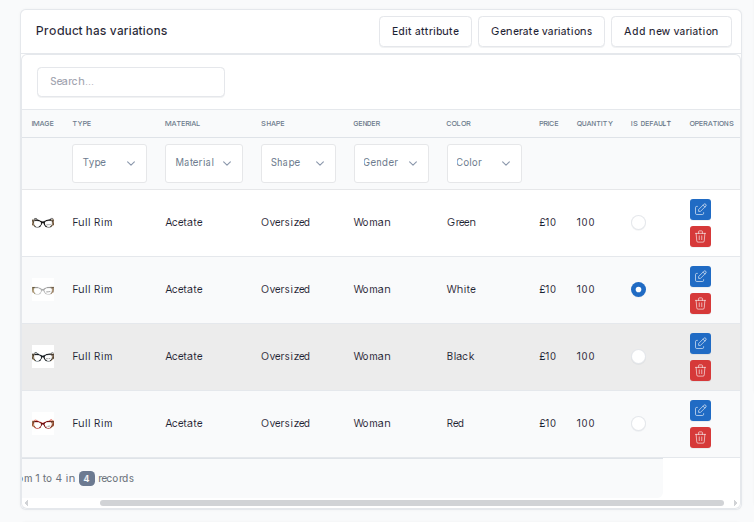
In the Product has variations table, each color row (Green, White, Black, Red) must be configured with its own inventory, pricing, and specific product photography:
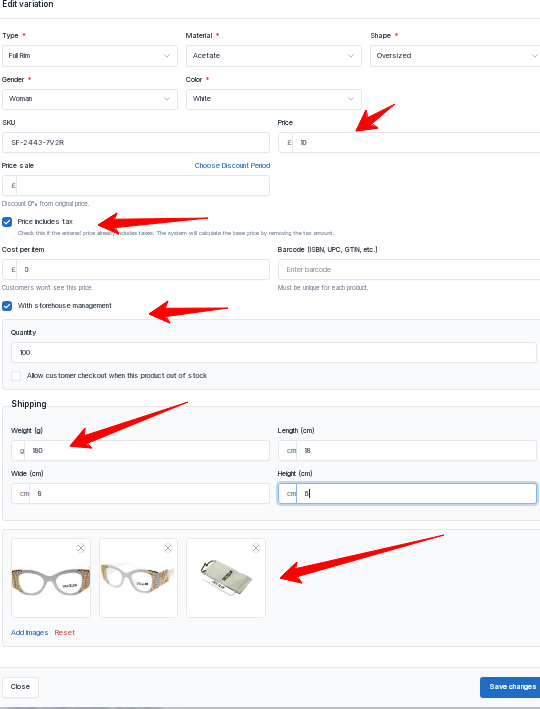
- Open Edit Modal: In the variations table, locate each color row and click the blue Edit (pencil icon) under the OPERATIONS column.
- Set Variation Info (Inside Edit Variation Modal):
- SKU: Enter a unique SKU for each color (e.g., SG-0020-BLK , SG-0020-GRN , SG-0020-WHT , SG-0020-RED ).
- Price: Enter the selling price (e.g., £10.00 ).
- Price includes tax: Check this option if selling price includes VAT.
- Storehouse Management: Check ✓ With storehouse management and enter warehouse Quantity: 100.
- Shipping (Shippo): Enter Weight 180g and Dimensions 18 × 8 × 6 cm for automated carrier postage calculation.
- Where to Add Pictures (Variation Images): Scroll to the bottom of the modal to the Variation Images section. Click Add images and upload the photos matching that specific colorway (front angle, embellished temple detail, and case).
- Click the blue Save changes button.
- Repeat this process for all 4 colorways (Green, Black, Red).
Step 5
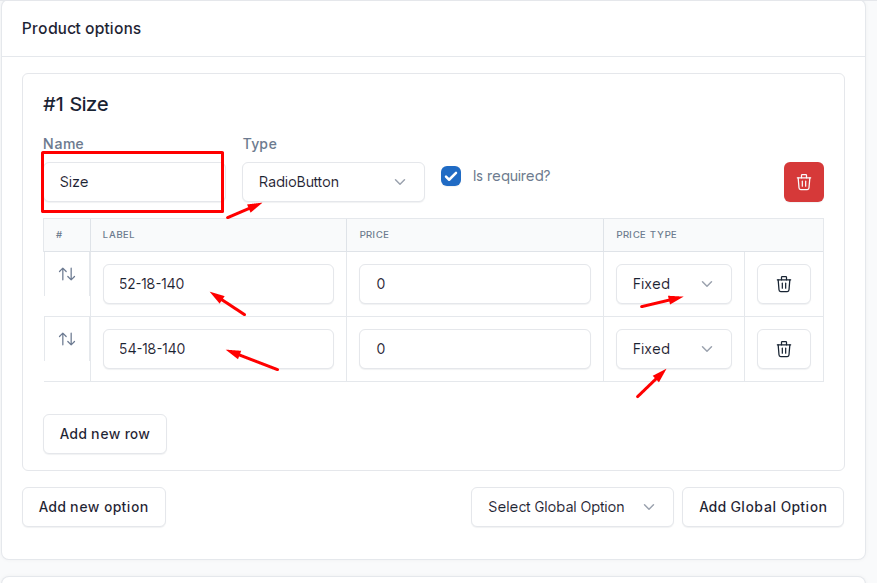
Configure Frame Sizes using Product Options (Size: 52-18-140 & 54-18-140)
To allow buyers to select frame eye sizes without creating unnecessary database permutations, use the Product options panel:
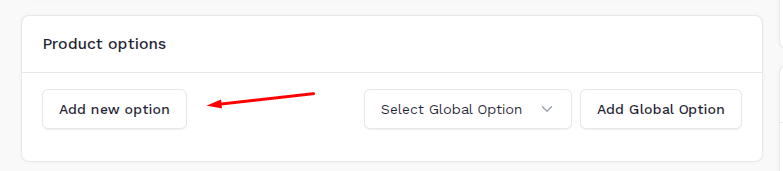
- Locate Product Options: Directly beneath the variations table, locate the Product options card.
- Create Size Option: Click the Add new option button:
- Option Name: Enter Size .
- Option Type: Select RadioButton from the dropdown menu.
- Mandatory Selection: Check ✓ Is required? so buyers must pick a size before adding to cart.
- Add Optical Size Rows:
- Row 1: Label: 52-18-140 | Price: 10 (or 0) | Price type: Fixed .
- Row 2: Click Add new row: Label: 54-18-140 | Price: 10 (or 0) | Price type: Fixed .
- This renders an elegant, mandatory radio button picker on your live storefront directly beneath the color swatches.
Step 6
Publish Listing & Storefront Result Verification
Save and publish your listing, then verify how opticians and retail customers interact with your multi-option frame on Eyewearfarm:
- Click the blue Save (or Save & Exit) button in the top-right Publish box.
- Admin Approval: Wait for the platform administrator to review and verify the product status as Published so it becomes active in the marketplace.
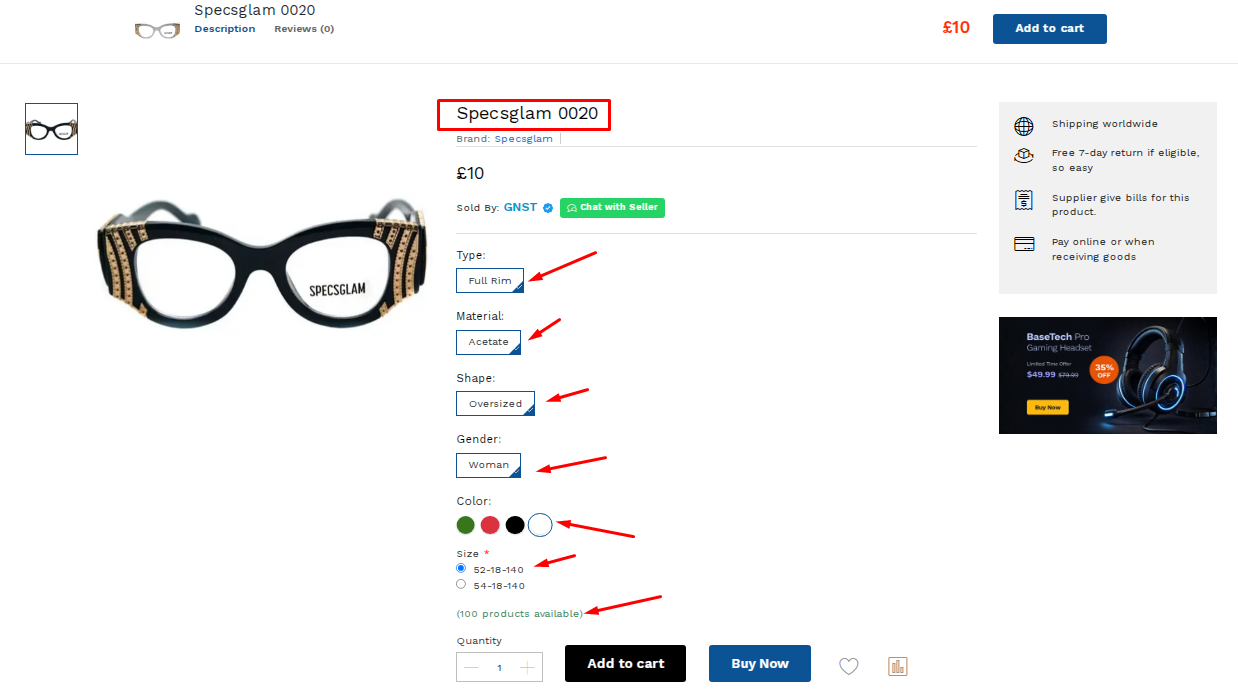
- Storefront Result Verification: Visit the live product page at https://www.eyewearfarm.com/en/products/specsglam-0020:
- Frame Overview: Displays Specsglam 0020 , price £10 , sold by your vendor store, and base badges: Full Rim, Acetate, Oversized, Woman.
- Interactive Color Swatches: Selecting between Green, White, Black, and Red dynamically updates the main gallery to display that colorway's photos.
- Size Radio Buttons: Buyers select between 52-18-140 and 54-18-140 before clicking Add to cart or Buy Now.
- Live Inventory: Warehouse quantity displays 100 products available with live Shippo carrier delivery rates.