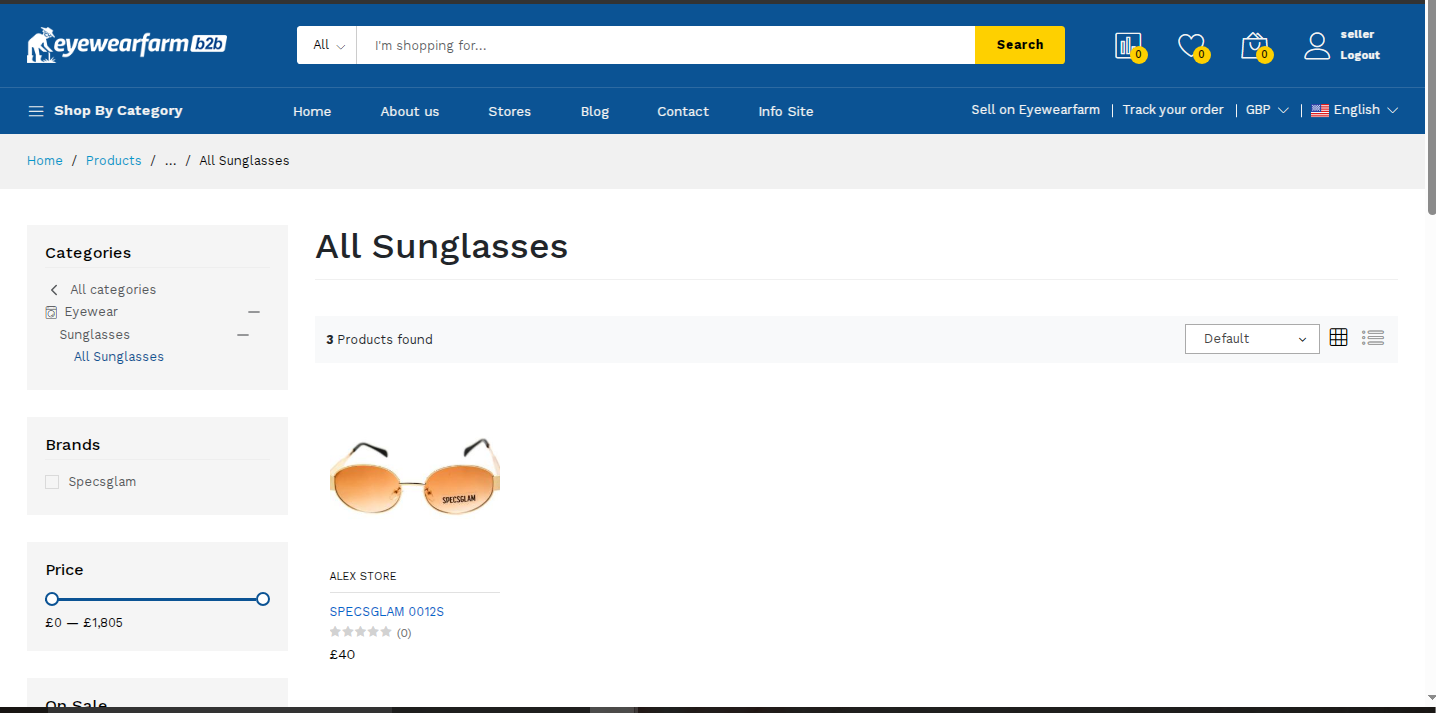
How to Add a Simple Product
A simple product is a single standalone optical item with no variant drop-downs and a single price point. In the optical trade, simple products include single-SKU designer frames, hard shell cases, microfiber cleaning kits, and ophthalmic dispensing tools.
Step 1
Enter Basic Product Information
Navigate to Products → Create Product in your vendor dashboard. Fill out the general details for your optical listing:
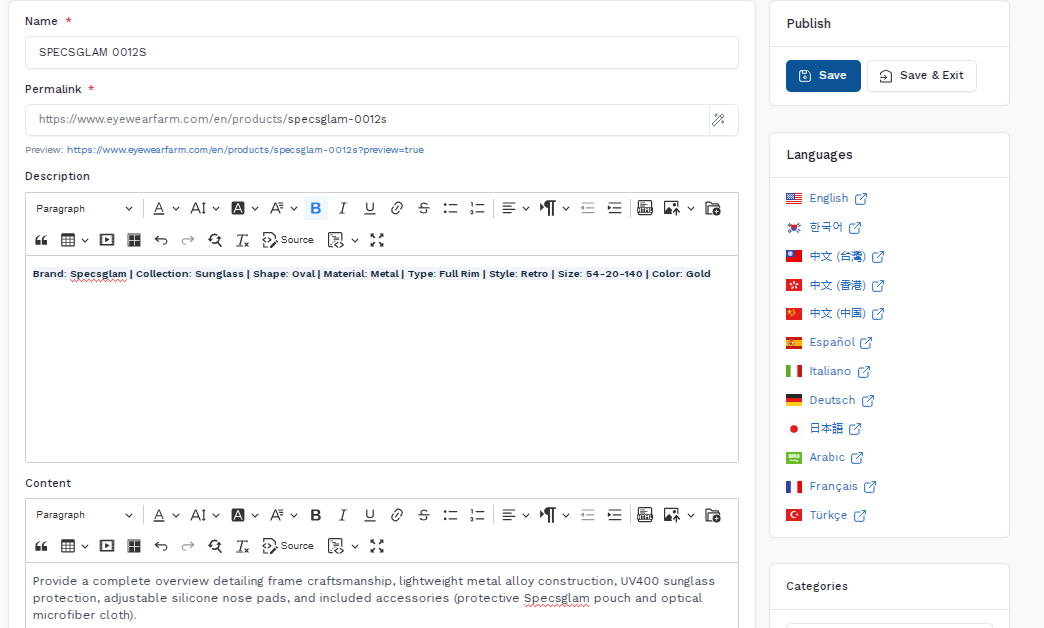
- Name: Enter the official brand and model name (e.g., SPECSGLAM 0012S ).
- Permalink: The system automatically generates a clean URL slug (e.g., https://eyewearfarm.com/en/products/specsglam-0012s ).
- Description: Enter key optical specifications: Brand: Specsglam | Collection: Sunglass | Shape: Oval | Material: Metal | Type: Full Rim | Style: Retro | Size: 54-20-140 | Color: Gold .
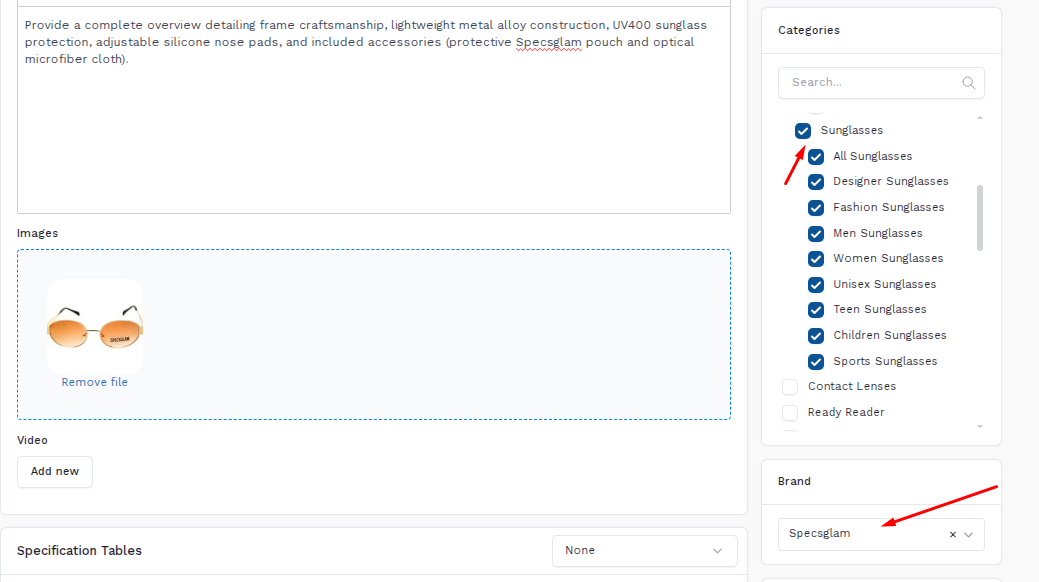
- Content: Provide a complete overview detailing frame craftsmanship, lightweight metal alloy construction, UV400 sunglass protection, adjustable silicone nose pads, and included accessories (protective Specsglam pouch and optical microfiber cloth).
Step 2
Upload Product Images
Provide clear optical photography showcasing frame geometry, craftsmanship, and styling:
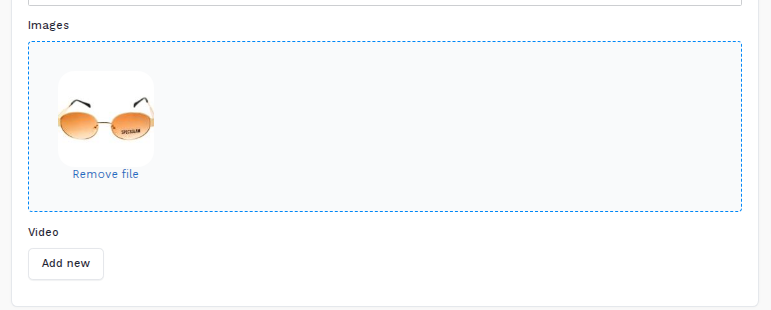
- Featured image (optional): In the right sidebar, click Choose image to select the primary front-facing photo of the sunglasses on a clean white background.
- Images (Gallery): Under the Content editor, drag and drop multiple frame photos into the Drop files here or click to upload area (front angle view, temple profile view, nose bridge detail, and the branded Specsglam cleaning pouch).
Step 3
Set Pricing, Taxes (VAT), Inventory & Shipping (Shippo)
Configure your product pricing, tax rules, warehouse stock, and package weight for automated Shippo delivery rates:
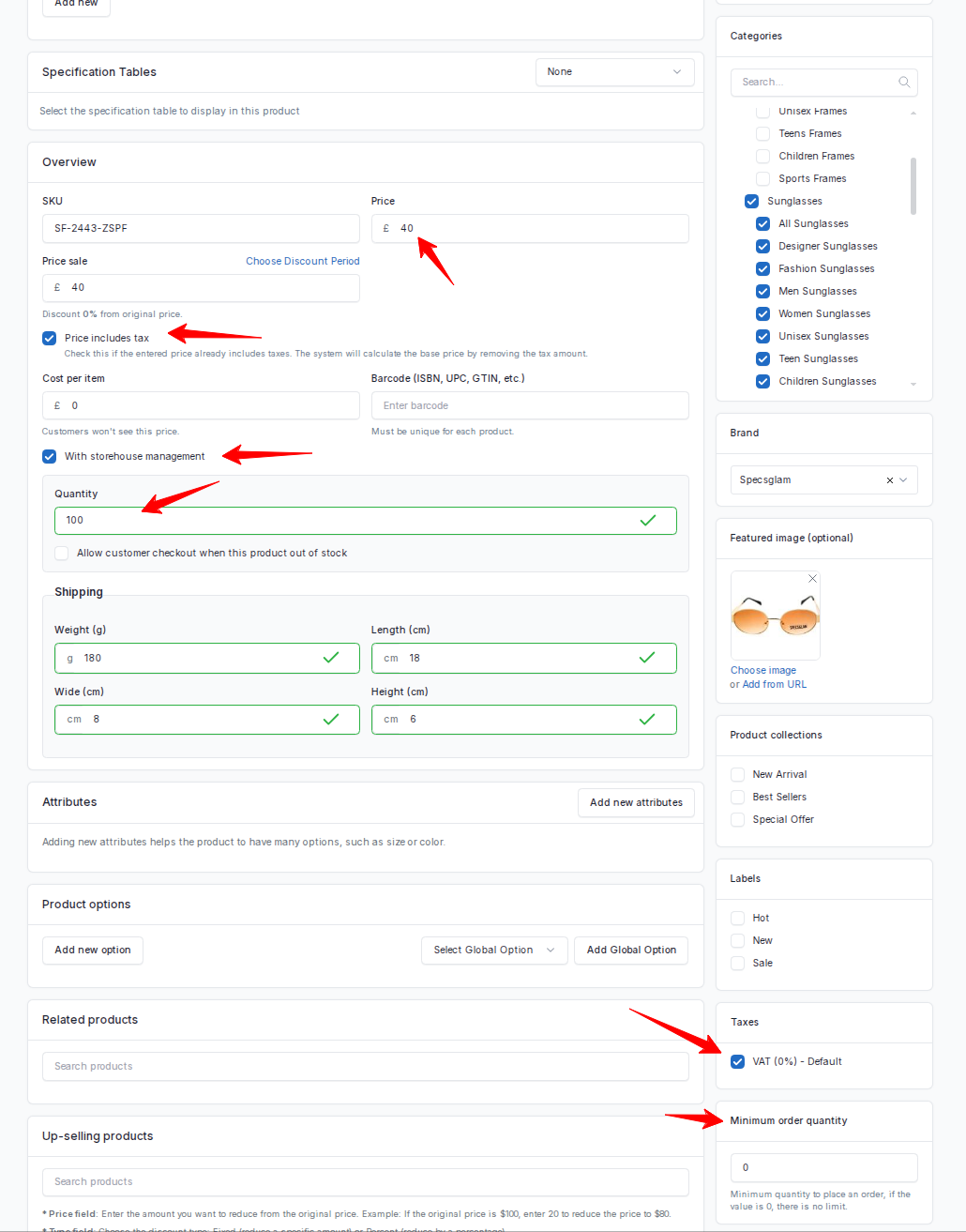
- Price: Enter your wholesale or retail selling price in GBP (£) (e.g., £40.00 ).
- Price includes tax: Check this option if your entered price already contains VAT. The system automatically separates the net base price and tax amount on invoices.
- Taxes (VAT) — Automated Global Rules: In the right sidebar under the Taxes card, select VAT (Default) . The platform's tax engine handles the logic automatically based on the buyer's shipping country:
- Domestic Sales (UK, France, China): If a customer buys from the UK (20%), France (20%), or China (15%), the system dynamically adds your local VAT onto the order total. If your entered product price is already gross (inclusive of VAT), make sure to check ✓ Price includes tax so the system properly itemizes the net base price and tax amount on the invoice.
- Zero-Rated Exports (0% VAT): If a customer buys from any other country (such as the USA or India), the system instantly recognizes the transaction as an international export and automatically applies 0% VAT , ensuring they buy completely tax-free under standard export exemption laws.
- Shipping (Weight & Dimensions for Shippo): Accurate parcel measurements are essential because Shippo calculates live carrier postage rates (Royal Mail, DPD, DHL, FedEx) at buyer checkout:
- Weight (g): Enter the total packaged weight in grams (e.g., 180g for frame, optical pouch, and cleaning cloth).
- Dimensions (cm): Enter parcel Length, Width, and Height (e.g., 18cm × 8cm × 6cm for a protective optical case).
- With storehouse management: Check this option to enable automated real-time inventory tracking.
- Quantity: Enter available warehouse units (e.g., 100 in stock).
- Stock status: Set to In stock (or Out of stock / On backorder).
- Minimum order quantity (MOQ): In the right sidebar, enter the minimum order requirement for B2B optical buyers (e.g., 1 unit or minimum wholesale batch size).
Step 4
Select Categories & Brand
Classify your frame so optical buyers and opticians can filter it accurately on Eyewearfarm:
- Categories: In the right sidebar, search sun and select Sunglasses , along with applicable sub-categories: Unisex Sunglasses , Designer Sunglasses , and Fashion Sunglasses .
- Brand: Click the Brand dropdown and choose Specsglam .
Step 5
Publish the Listing
Review and finalize your listing using the Publish panel on the right sidebar:
- Click Save to publish your listing and remain on the product editor.
- Click Save & Exit to publish and return directly to your Products catalog overview.
- Once the admin approves the product, it will be visible in the storefront.